
What AI detector does Canvas use? On its own, none. Canvas is a learning management system, and its maker, Instructure, did not build an AI detector into it. The AI score you may see next to an assignment comes from a separate tool that your school bought and connected. Turnitin is the most common choice. Copyleaks and GPTZero also appear in many courses. This guide covers which tools connect to Canvas and what your instructor can see. It also explains what Canvas records without any add-on and how to find out what your own course uses.
Does Canvas Have AI Detection Built In?
No. Canvas has no native AI detection, and it has no native plagiarism checker either. It handles assignments, grades, quizzes, and discussions. It does not read your text and estimate whether a person wrote it.
Instructure built Canvas to accept outside tools through a standard called LTI. Detection companies use that standard to place their products inside the course. When a score appears in a submission, Canvas is only displaying a report that another company produced.
Canvas does have its own AI features under the name IgniteAI. Those tools support teaching tasks rather than checking student writing.
That leaves a simple answer to what AI checker does Canvas use. It uses whichever one your school licenses. Some schools license none, and some license one for certain courses only.
What AI Detector Does Canvas Use Most Often?
Schools choose from several vendors. The tool in a given course depends on the school’s contract, budget, and policy.
1: Turnitin
Turnitin is the most widely used option, especially in colleges. It added an AI writing indicator in April 2023. In SpeedGrader, instructors see it beside the similarity report. The indicator needs at least 300 words of prose to produce a result. Very low scores appear with an asterisk instead of an exact number, because small values are less reliable. Some schools pay for similarity checking only, so the AI indicator may be off entirely.
2: Copyleaks
Copyleaks offers a Canvas integration that combines plagiarism and AI detection in one report. Schools with many multilingual students often consider it because it supports many languages. Instructors open the results from the same submission view they already use.
3: GPTZero
GPTZero began as a standalone checker and now has its own Canvas integration. Results appear inside SpeedGrader with sentence-level highlighting. Teachers and small departments sometimes adopt it when the school has no campus-wide tool.
4: Pangram, Compilatio, and others
Pangram, Compilatio, and Proofademic also offer Canvas connections. Originality.ai is a popular checker, but it often works outside Canvas. An instructor pastes text into it by hand.
5: Turnitin Clarity
Turnitin Clarity is a newer option. Students write inside a workspace in Canvas that records the drafting process and revision history. The instructor reviews how the work developed instead of relying on a final score alone. Some schools have piloted it, and adoption is still uneven.
How the Main Canvas AI Checkers Differ
The tools share one job, but they fit different situations. Turnitin makes sense when a school already uses it for similarity checks, because everything lives in one report. Copyleaks suits courses with multilingual students or code, since it covers many languages and programming assignments. GPTZero suits instructors who want sentence-level detail from a tool built only for AI detection.
No single tool is best for every course. Vendors publish their own accuracy figures, and independent tests vary with the writing samples used.
How AI Detection Shows Up Inside Canvas
The setup follows the same steps in most schools. An administrator adds the detection tool to the school’s Canvas account. An instructor then turns it on for individual assignments. When a student submits, Canvas sends the file to the vendor. The score and report come back and appear in SpeedGrader
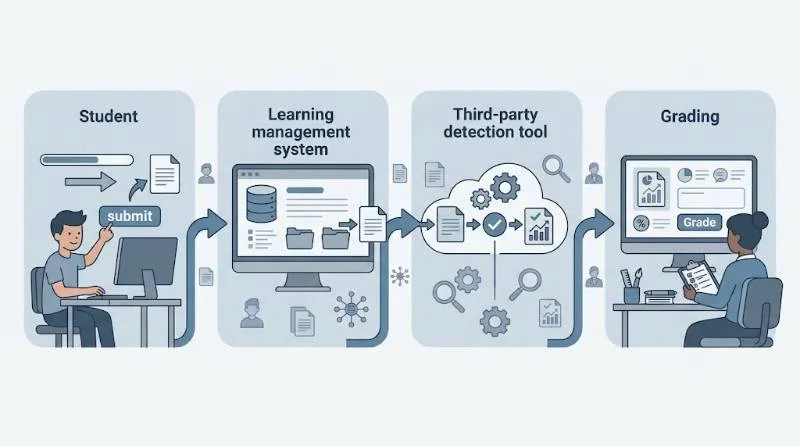
Whether you can see the report depends on the instructor’s settings. Students often cannot see the score unless the instructor shares it. If the tool is off for an assignment, nothing is scanned there, even at a school that owns the license.
What an Instructor Sees in SpeedGrader
SpeedGrader shows the student’s submission with a link to the detector’s report. A typical AI report shows an overall percentage and highlights the passages that triggered it. Some tools separate text that looks fully generated from text that looks reworded with a paraphrasing or humanizer tool. The similarity report sits beside it and checks for matching sources. The two scores measure different things, so one can be high while the other is low.
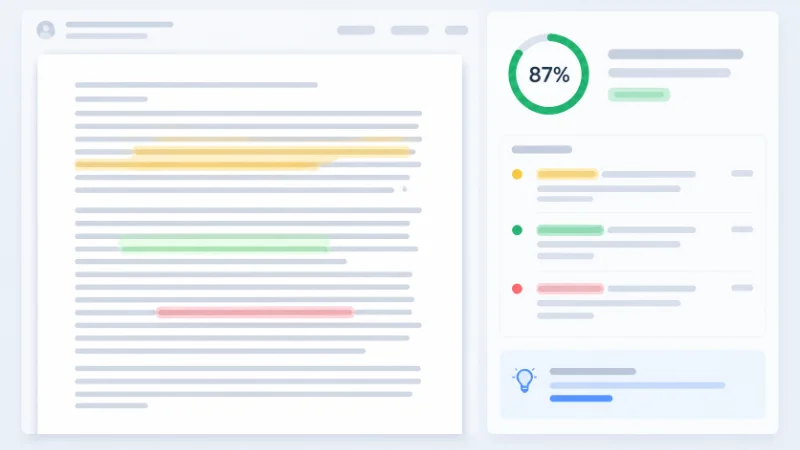
On Turnitin, a score of 30 percent does not mean there is a 30 percent chance the student cheated. It estimates how much of the qualifying text the model believes a machine wrote. Readers often mix up those two meanings.
Many instructors treat a flagged passage as a reason to read closely, not as a finding.
What Canvas Records on Its Own
Canvas does not need an add-on to keep activity logs, but those logs are narrower than many students fear.
Canvas cannot see your browser history, your clipboard, or other windows on your computer. It does record submission times, the number of attempts, and uploaded files. In quizzes, it logs when you leave the quiz page and how long you were away. It cannot tell where you went.
Lockdown browsers and proctoring tools, such as Respondus LockDown Browser, are separate products. They restrict or monitor the device during exams. They do not analyze writing for AI, but schools sometimes pair them with a detector.
Timing alone proves nothing. A long essay uploaded minutes after an assignment opened can still prompt a question from an instructor.
Does Canvas Have AI Detection for Quizzes and Discussions?
Detection works best on long written submissions. File uploads and text-entry assignments are the easiest for a tool to scan, because the full text goes to the vendor.
Quizzes are different. Multiple-choice answers give a detector nothing to scan. Short essay answers in a quiz are often not sent to a detector, and short text gives unreliable scores anyway. For quizzes, schools lean on timing limits, activity logs, lockdown browsers, and proctoring instead.
Discussion posts vary the most from school to school. Some vendors are adding discussion support, and some schools use discussion tools that include it. Many courses still depend on instructors pasting suspicious posts into a checker by hand.
Can Canvas Detect ChatGPT or Other AI Tools?
Canvas cannot detect ChatGPT, Gemini, Claude, or any other chatbot while you use it. Detectors connected to Canvas judge only the text you submit. They look for statistical patterns common in machine-written prose, such as even sentence rhythm and predictable word choice. They cannot identify the chatbot or prove how the text was made. That is why lightly edited AI text can slip through and plain human writing can be flagged wrongly.
How Accurate Are the AI Checkers Canvas Uses?
Every detector gives a probability estimate, not proof. Vendors say so themselves, and Turnitin advises against using its score as the only basis for discipline.
False positives are the main risk. Formal, polished, or highly structured writing can look machine-made to a detector. Detectors wrongly flag writing by non-native English speakers more often than writing by native speakers. Short passages produce weaker results than full essays. Lab reports and other formulaic assignments can trigger flags for the same reason.
Misses happen too. Text that a person has edited heavily, or that went through a paraphrasing tool, often scores lower than raw chatbot output. Because of these limits, some colleges have restricted or turned off the AI indicator while keeping the plagiarism checker.
What Happens If Your Work Gets Flagged
A flag usually starts with a conversation. Many instructors compare the submission with your earlier work and then ask how you wrote it. Be ready to explain your sources, your outline, and your choices. Drafts and version history are the strongest evidence you can offer.
Write in Google Docs or Word with version history on, and keep your notes and source links. If you used AI in a way your course allows, such as brainstorming, say so plainly. If you did not use it and still got flagged, ask how your school reviews the result.
Grammar and rewriting tools can also raise an AI score when they restructure whole sentences. Check whether your course allows them, and keep your original draft to show what changed.
Do K-12 Districts and Colleges Use Different Tools?
Often, yes. Colleges usually license a suite such as Turnitin for the whole campus, and departments may add their own tools. K-12 districts tend to decide at the district level, so schools in the district follow one setup. Some districts use no AI detector and rely on in-class writing and teacher judgment instead.
A fully online course may also ask for drafts, outlines, or short oral explanations to confirm authorship.
How to Find Out Which AI Checker Your Course Uses
Students cannot see the administrator settings, so check a few places.
- Read the syllabus and the academic integrity section for named tools.
- Open the assignment page and look for a Turnitin logo or a similarity review notice.
- Check the submission page after you submit, since some tools add a report link or a status message.
- Check your school’s teaching or IT help pages, which often list approved integrations.
- Ask your instructor directly, and ask whether AI use is allowed for any part of the work.

Policies differ from one class to the next, even inside the same school. A tool that is active in one course may be off in another. Your instructor’s written rules matter more than any general guide, including this one.