

If you have searched for how to opt out of Meta AI, the honest answer is that a full opt-out does not exist for US users. Meta gives EU, UK, and South Korean users a formal objection process because local privacy law requires it. US users do not have that same legal lever. What you do have is a working set of settings on Facebook, Instagram, and WhatsApp that mute the assistant, hide it from your screen, and cut down what it can see and use. This guide walks through every one of them, plus the one official form US users can still submit if Meta AI has surfaced their personal information in an unwanted way.
Can You Actually Opt Out of Meta AI in the US?
Not completely, and it helps to know that going in so you are not chasing a setting that does not exist. Meta AI is built into Facebook, Instagram, WhatsApp, and Messenger the same way the camera or the notifications tab is. There is no single toggle labeled “Turn Off Meta AI” anywhere in any of the four apps, and Meta has confirmed there is no plan to add one.
What you can do is disconnect from it piece by piece. You can hide the AI button so it stops appearing in your chat list, mute its responses in search, stop it from summarizing comments on your posts, and block it from specific conversations on WhatsApp. None of that deletes Meta AI from the app, but together these settings get you close to a functional opt-out, at least for how the assistant behaves going forward.
Why US Users Don’t Get the Same Opt-Out as the EU
The EU, UK, and South Korea all have data protection laws that give residents a legal right to object to how a company processes their personal information, including using it to train AI models. Meta built a formal objection form to comply with those laws, and it only appears for accounts registered in those regions.
The US has no federal equivalent. A handful of states, including California, Colorado, and Virginia, have their own privacy statutes that grant residents narrower rights around data sale and processing, but none of them currently force Meta to offer a blanket AI training opt-out the way GDPR does. That is why Meta’s own help pages route EU and UK accounts to a “Right to Object” flow and route US accounts somewhere else entirely, which we will get to below.
How to Limit Meta AI on Facebook
1. Mute Meta AI in the Search Bar
Facebook’s search bar now defaults to suggesting you “Ask Meta AI” and can return AI-generated summaries mixed into your results. Tap the small icon next to an AI response, choose the option to hide or dismiss it, and Facebook will stop surfacing that particular type of AI content for a while. It is not permanent, so expect to repeat this occasionally.
2. Mute or Ignore an AI Chat Thread
If you have ever tapped into a conversation with the Meta AI chatbot in Messenger, that thread stays in your inbox like any other. Open it, tap your profile icon at the top, go to settings within the chat, and select Mute Notifications or Ignore Chat. This stops the thread from pinging you and moves it out of your main inbox without deleting your account’s connection to the assistant.
3. Turn Off Comment Summaries on Your Posts
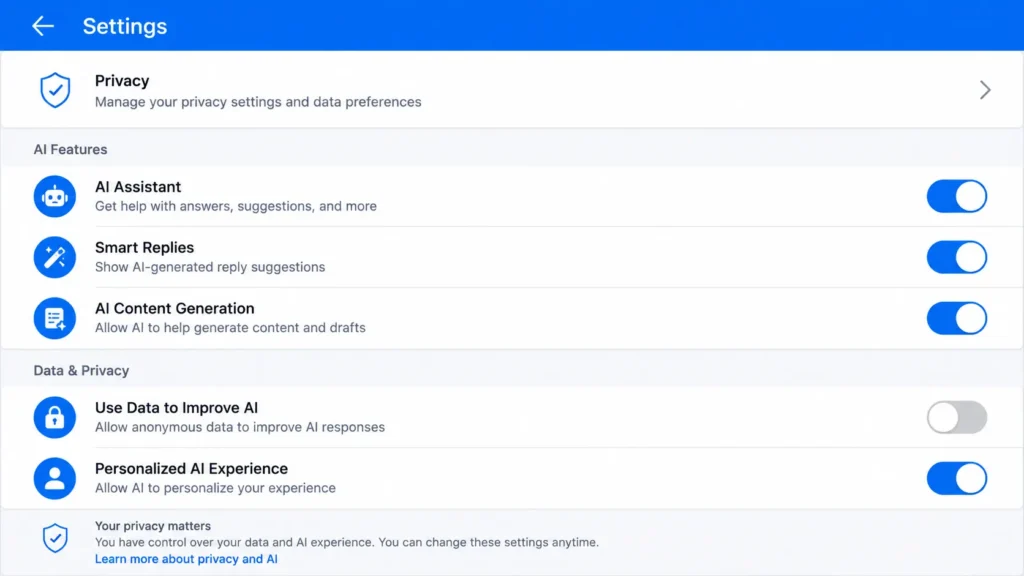
If you run a Facebook Page or a personal profile with a large following, Meta AI can auto-generate summaries of long comment threads under your posts. To stop this, go to Settings & Privacy, then Settings, scroll to the Posts section under Audience and Visibility, and switch off Allow Comment Summaries. This takes effect immediately on future posts.
How to Limit Meta AI on Instagram
1. Submit the Third-Party Information Form
This is the closest thing US users have to a formal objection. If Meta AI has generated a response that includes your personal information, or if your public content shows up in a way you did not expect, you can file a complaint through Meta’s third-party information form rather than the EU-only objection form. To find it, open Instagram, tap the menu icon on your profile, go to Settings and Privacy, then Privacy Center, and look for the option to report a concern about an AI response. You will need to describe the issue, attach screenshots if you have them, and provide contact details so Meta can follow up. Submissions are reviewed case by case, and Meta is not obligated to remove the underlying data, only to evaluate your specific complaint.
2. Mute Meta AI in Search and Direct Messages
Instagram surfaces Meta AI in the search bar and occasionally suggests it inside DMs. You can dismiss individual AI suggestions the same way you dismiss a suggested post, and repeated dismissals tend to reduce how often it appears. There is currently no setting that removes the AI icon from the search bar entirely.
3. Turn Off Translate Voice on Reels
If you post Reels, Meta AI can auto-translate your voice into other languages using an AI-generated version of your voice. To disable this, go to Settings, then Language and Translations, and turn off the Translate Voice option. This is worth checking even if you have never noticed the feature, since it can be on by default for creator accounts.
How to Limit Meta AI on WhatsApp
1. Hide the Meta AI Button
WhatsApp is the one Meta app with a real hide switch. Go to Settings, then Chats, and look for Show Meta AI Button. Turning it off removes the blue circle from your chat list. Meta has rolled this out in phases, so if you do not see the option yet, update the app and check again in a week or two.
2. Use Advanced Chat Privacy to Block Meta AI Per Chat
Inside an individual chat, open the contact or group name, tap Advanced Chat Privacy, and enable the setting that blocks Meta AI from being used in that conversation. This is useful for group chats where someone else might tag the assistant and pull your messages into the exchange without your input.
3. Try Incognito Meta AI Chats
If you do use the assistant directly, WhatsApp added an incognito mode built on what Meta calls Private Processing. Conversations run in an isolated environment that Meta says is not retained once you close the chat. It does not stop Meta AI from existing in the app, but it is the closest thing to a private, non-logged interaction currently available.
What Submitting an Objection in the US Actually Does
It is worth being clear-eyed about this before you spend time filling out a form. The US third-party information form is a complaint mechanism, not a legal objection with a guaranteed outcome. Meta reviews each submission and decides whether action is warranted. It does not automatically stop Meta from using your public posts, photos, or comments to train future models, and it does not retroactively remove data already used in past training runs.
Save a copy of your submission and any confirmation email Meta sends back. If the issue involves your personal information appearing inaccurately in an AI response, having that documentation matters if you need to escalate the complaint later or reference it in a follow-up.
Reducing Your Data Footprint Beyond the Toggles
Since a full opt-out is not on the table in the US, the more realistic strategy is limiting how much of your data is available to be used in the first place.
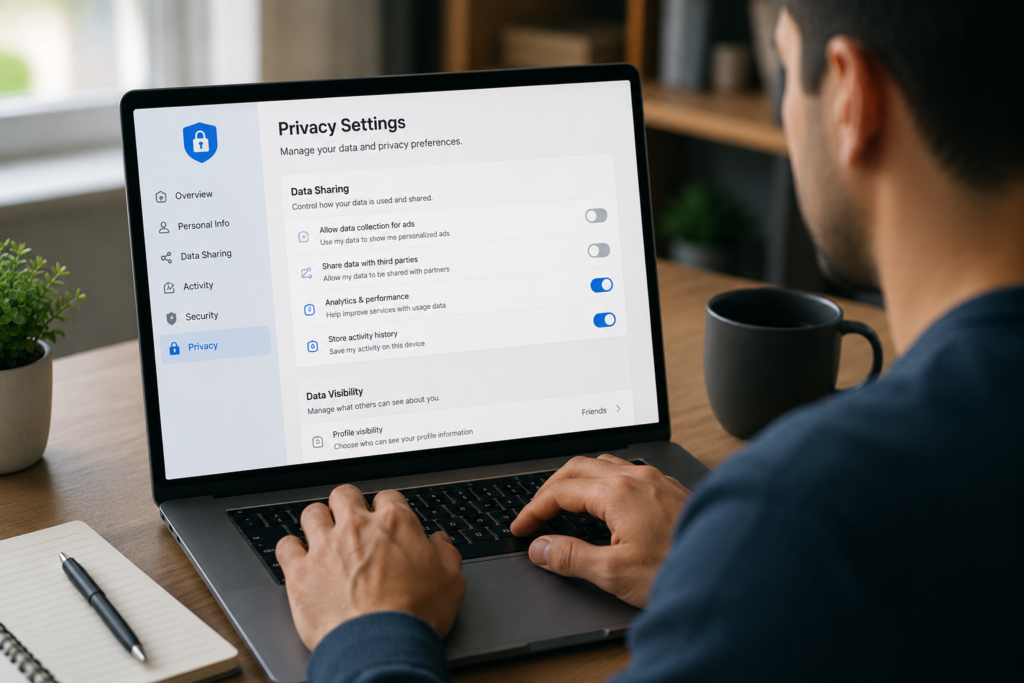
Set your Facebook and Instagram accounts to private if you have not already. Public posts, photos, and comments are the primary source Meta draws from for training, so a private account meaningfully narrows what is accessible. Review and delete old posts you no longer want associated with your account, particularly anything with identifying details. Turn off face recognition and location tagging where those options exist in your privacy settings. None of this guarantees removal of data Meta has already processed, but it reduces what is exposed going forward.
Common Myths About Opting Out of Meta AI
A few claims circulate regularly and are worth correcting. Using a VPN to access the EU objection form does not reliably work, since Meta checks account region, phone number, and other signals beyond just your IP address, and using a fake location can also violate Meta’s terms of service. Deleting your conversation history with the Meta AI chatbot does not remove the feature from the app or undo any training that already happened on past interactions. And there is no hidden settings menu, browser extension, or paid tool that grants US users the same legal opt-out available in the EU. Anyone selling that claim is misinformed or misrepresenting what the product actually does.
Should You Just Delete Your Meta Accounts?
For most people, this is not necessary. If your primary concern is day-to-day exposure to the assistant, the muting and hiding options above get you most of the way there. Account deletion becomes a reasonable option if you specifically do not want any of your historical data available for AI training and you are willing to lose access to Facebook, Instagram, WhatsApp, or Messenger entirely. Even then, keep in mind that data Meta has already used to train existing models is not pulled back out simply because you close your account later.