

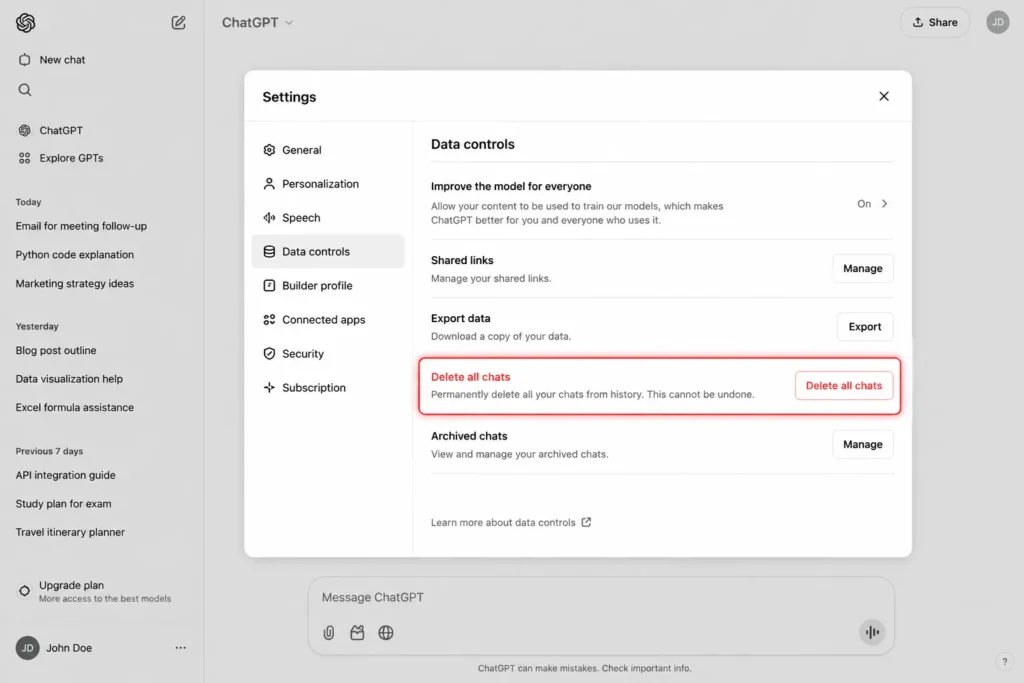
To delete all chats in ChatGPT, go to Settings, open Data controls, and select Delete all chats. This removes every conversation at once, including chats inside projects, and cannot be undone once you confirm.
That single setting handles a full wipe, but it is not the only option you have. You can also remove one chat at a time, archive conversations instead of deleting them, or reach for a browser extension if you only want to clear some chats and keep others. Each path works a little differently, and picking the wrong one can mean losing something you meant to keep.
Delete All Chats in one Step
Open ChatGPT on desktop or web and click your profile name in the bottom corner. Go to Settings, then Data controls. Next to “Delete all chats,” click the button and confirm the action in the popup that appears.
Delete a Single Chat Instead
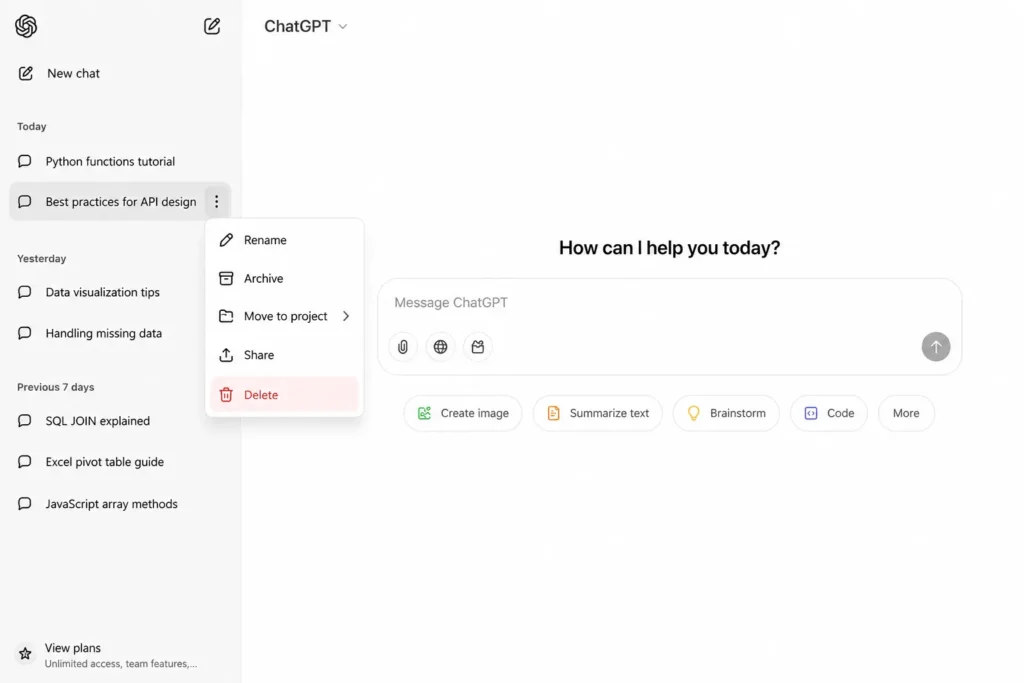
If you only want one conversation gone, you don’t need the nuclear option. Hover over the chat in your sidebar, click the three dots next to its title, and select Delete. Confirm when prompted, and that chat disappears from your history immediately.
This is the same three-dot menu you’d use to rename a chat or move it into a project, so it’s worth getting familiar with if you clean up your history often. Deleting one chat at a time works fine for occasional cleanup, but it gets tedious fast once you’re past a dozen conversations.
Delete vs Archive: What’s the Difference
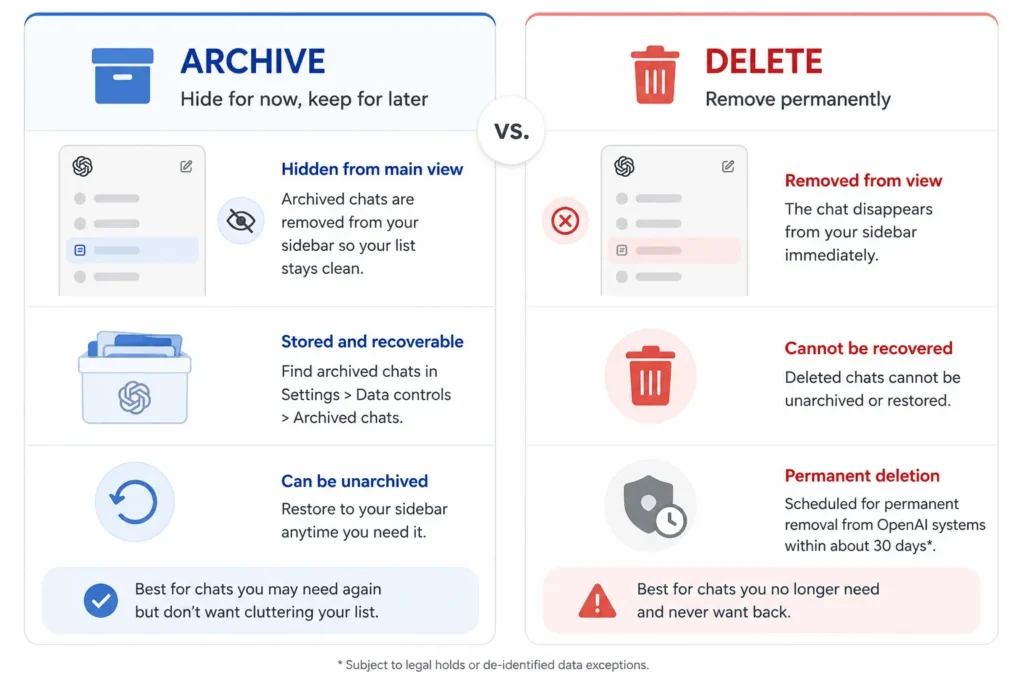
Archiving and deleting solve different problems, and mixing them up is a common mistake. Archiving hides a chat from your main sidebar without removing it, so you can pull it back later. Deleting removes it for good.
To archive a chat, use the same three-dot menu and choose Archive instead of Delete. No confirmation step is needed for archiving, unlike deletion. You can find archived chats later under Settings, Data controls, next to “Archived chats,” where a Manage button lets you unarchive them or delete them permanently.
What Happens to a Chat after you Delete it
Once you confirm a deletion, the chat disappears from your view right away. Behind the scenes, OpenAI schedules it for permanent removal from its systems within about 30 days, with limited exceptions for legal holds or de-identified data. From your side, though, the chat is gone the moment you click confirm, and you can’t reopen or reference it again.
If the deleted chat used a connected app, such as Google Drive, Gmail, or your calendar, deleting it removes that connected app data along with the conversation itself. Just disconnecting an app is different: it stops ChatGPT from pulling new data going forward, but it won’t erase past conversations that already used it. If you want that older data gone too, you need to delete the specific chats that referenced it, not just disconnect the app.
Can you Delete only some Chats at a time
This is where ChatGPT’s native tools fall short. There’s no built-in way to tick a handful of specific chats and remove just those in one batch. Your only native options are one chat at a time through the three-dot menu, or everything at once through Data controls.
1. Why there’s no Native Multi-Select
The gap comes down to how the sidebar is built. It’s designed for browsing and opening conversations, not for managing large batches of them, so there’s no checkbox layer sitting underneath the chat list. Requests for this feature have shown up repeatedly on the OpenAI developer community forum, where it remains a common feature request without a native fix as of this writing.
2. Using a Browser Extension for Selective Bulk Delete
If you need to keep some chats and remove others in one pass, a Chrome extension is currently the only way to add that missing multi-select layer to the sidebar. Tools built for this let you check off specific conversations and delete or archive the group together, instead of opening each one individually. If you go this route, stick to extensions with clear privacy policies and solid reviews, since they run directly inside your ChatGPT tab.
Deleting Chats that Used Connected Apps
If you’ve linked ChatGPT to outside services, deleting a chat that referenced that data also removes the app data tied to that specific conversation. This matters if privacy is your main reason for clearing history: disconnecting the app alone leaves old references sitting in past chats. To fully scrub that data, delete every conversation that touched it, not just the connector itself.
Can you Recover a Deleted Chat
No. Per OpenAI’s own documentation, “deleted chats, including those removed with Delete all chats, cannot be restored.” This is true whether you delete a single conversation or wipe your whole history through Data controls. If there’s any chance you’ll want a conversation later, archive it instead of deleting it, since archived chats can still be pulled back into your active list.
Deleting Chats on the ChatGPT Mobile App
The iOS and Android apps mirror the web experience for deletion. You can remove a single chat through its options menu, and Settings still has a Data controls section with the same Delete all chats option. What’s missing is the same thing that’s missing on desktop: no multi-select for picking specific chats out of a longer list. If selective cleanup matters to you and you’re on mobile, you’re limited to deleting chats one at a time or wiping everything.
Quick Takeaway
For a full reset, Settings, Data controls, Delete all chats gets you there in under a minute, and it applies to every conversation including project chats. For a single unwanted chat, use the three-dot menu next to it. If you want to remove some chats while keeping others, archiving is the safer built-in option, and a browser extension is currently your only path to real multi-select deletion.
FAQ’S
1. Does deleting all chats in ChatGPT also delete my projects?
Deleting all chats removes conversations inside projects too, since the Data controls option applies to every chat in your account. The projects themselves may remain as containers, but the conversations inside them are gone.
2. How long does it take for a deleted chat to actually disappear from OpenAI’s servers?
The chat disappears from your view the moment you confirm the deletion. On OpenAI’s backend, it’s scheduled for permanent removal within 30 days, unless legal or de-identification exceptions apply.
3. Is archiving a safer option than deleting?
Yes, if you might want the conversation again. Archived chats move out of your main sidebar but stay recoverable through Settings, Data controls, Archived chats. Deleted chats cannot be brought back under any circumstances.
4. Can I delete just a few specific chats without wiping everything?
Not with ChatGPT’s native tools. You can delete chats one at a time through the three-dot menu, or delete everything through Data controls. Selecting a specific group for bulk deletion currently requires a third-party browser extension.
5. Does disconnecting a connected app delete the chats that used it?
No. Disconnecting an app only stops it from feeding new data into future chats. Past conversations that already used that data stay untouched until you delete those specific chats.