Claude Code Remote Control lets you connect to a coding session that is already running on your computer from your phone, tablet, or another browser. The session itself stays on your machine the whole time. The phone or browser screen is just a window into it, not a copy of your code sitting somewhere else.
You can start a task at your desk, walk away, and check on it from the couch or on the train. Anthropic built the feature so your filesystem, MCP servers, and project settings stay exactly as they are locally, since none of that moves anywhere. This guide covers what the feature does, how to turn it on, and where the limits sit.
What Is Claude Code Remote Control?
Remote Control is a feature inside Claude Code that mirrors a local terminal session onto claude.ai/code or the Claude mobile app for iOS and Android. According to Anthropic’s official Claude Code documentation, the local process keeps running on your machine the entire time Remote Control is active, so nothing about your project moves to a cloud server. The phone or browser tab shows you what is happening and lets you type replies.
This is different from Claude Code on the web, where Claude runs a fresh session inside Anthropic’s own cloud infrastructure. Remote Control preserves your actual setup: the same file tree, the same MCP servers, the same CLAUDE.md configuration you already have on disk. If you left a build running overnight, you can check the terminal from bed without getting up.
When Remote Control Actually Helps
The feature is built for moments when you already started something and do not want to stop it. A few situations come up often:
A long test suite or build is running, and you want to step away without keeping an eye on the terminal. You are debugging on a desktop workstation and want to continue the same conversation from a laptop on the couch. You hit a stopping point at your desk and want to think through the next step from your phone during a walk, then pick the thread back up later. A teammate needs to see what you are working on, so you share the session URL and they connect from their own device.
None of these need a fresh session. The context, the file access, and the tool configuration are already sitting on your machine. Remote Control just adds a second, third, or fourth way to reach it.
How It Works: One Session, Several Windows
When you start a Remote Control session, Claude Code registers with the Anthropic API and waits for a device to connect. Anthropic’s documentation describes the server as routing messages between your local process and whichever client you open, whether that is a browser tab, the mobile app, or a second terminal window. All three surfaces stay in sync, so a message typed on your phone shows up in the terminal moments later, and the reverse holds too.
If your laptop sleeps or the network drops, the session reconnects on its own once your machine is back online. Anthropic’s docs note that status updates queued during the outage still arrive once the connection rebuilds, so you are not left guessing what happened while you were away.
What You Need Before You Start
Remote Control works on Claude Code v2.1.51 or later. Run claude –version in your terminal to check which version you have, and update if you are behind.
The feature is available on Pro, Max, Team, and Enterprise plans. It does not work with a plain API key, and it is not available if you run Claude Code through Amazon Bedrock, Google Vertex AI, or Microsoft Foundry, since those routes do not connect back to Anthropic’s own claude.ai backend. On Team and Enterprise plans, an account Owner has to turn the Remote Control toggle on in the admin settings before anyone in the organization can use it.
You also need to be signed in through /login with a full claude.ai account, not a long-lived API token, and you should run claude inside your project folder once so the workspace trust prompt is out of the way
How to Start a Remote Control Session
There are three ways to turn Remote Control on from the CLI, plus a fourth if you work inside VS Code
Server Mode
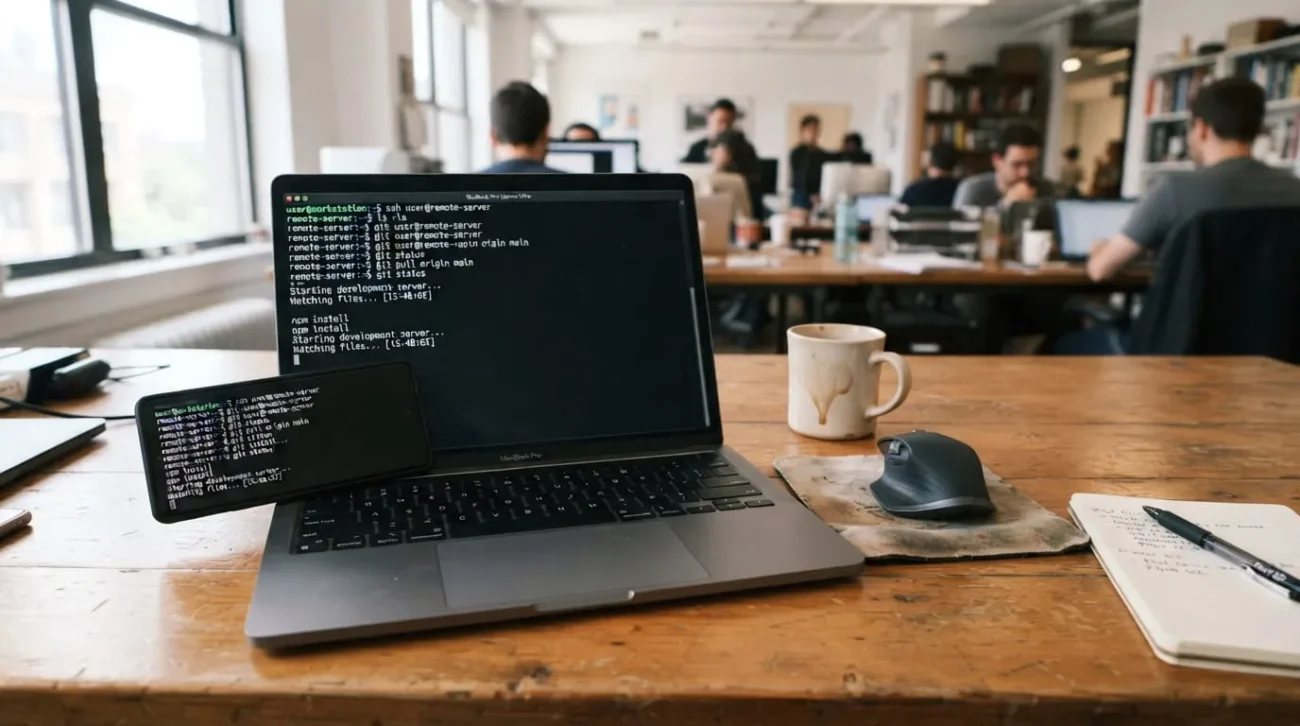
Running claude remote-control in your project directory starts a dedicated process that waits for connections and can host more than one session at once, up to 32 by default. It prints a session URL you can open on another device, and pressing the spacebar shows a QR code for scanning with your phone. Server mode is the option to reach for when you want several sessions running side by side, since each one can spin up in its own git worktree.
Interactive Session
Running claude –remote-control, or the shorter –rc, starts a normal interactive session that happens to also be reachable remotely. You can keep typing locally in the terminal the whole time. Anything you or the remote device sends lands in the same conversation.
From an Existing Session
Already mid-conversation and want to hand it off to your phone? Type /remote-control, or /rc, and Claude Code turns the current session into a Remote Control session, conversation history included. In VS Code, the same command works from the prompt box, and a banner shows connection status with a link to open the session in a browser.
Connecting From Your Phone, Tablet, or Browser
Once a session is running, open the URL it printed, scan the QR code with the Claude app, or open claude.ai/code and pick the session by name from the list. Sessions started with Remote Control show a small computer icon with a green dot when they are online.
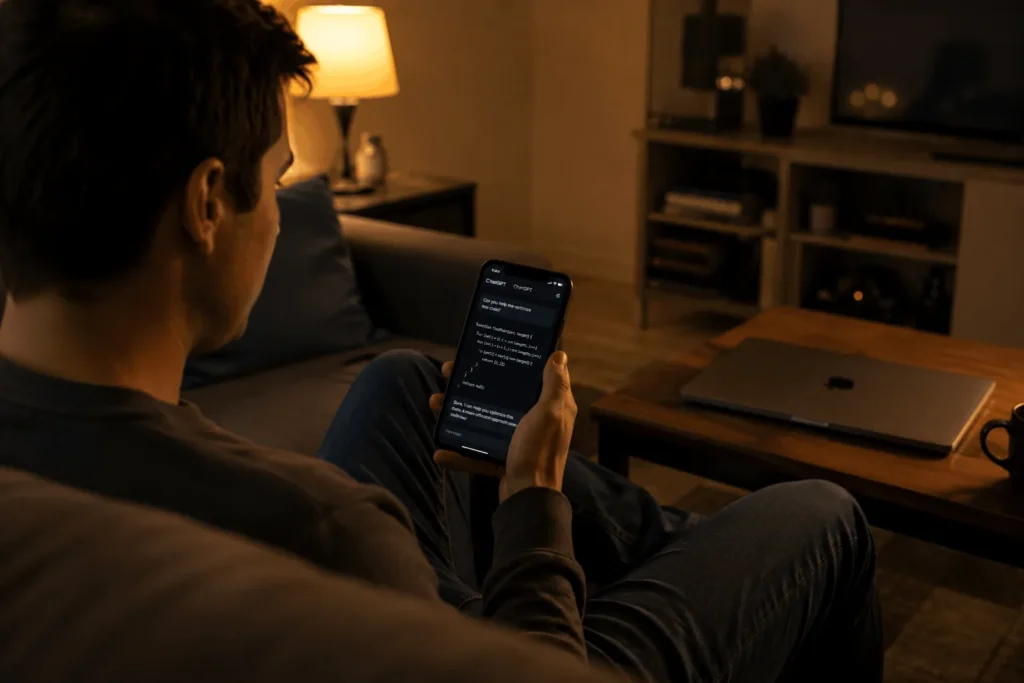
Typing an @ in the message box on your phone still autocompletes file paths from your actual project, and you can attach a photo or document from your phone; Claude Code downloads it to your machine and references it the same way it would a local file.
If you want a heads-up when something finishes, turn on push notifications from /config in the terminal, choosing between a notification when a task completes and one when Claude needs a decision from you. Claude Code skips the notification if you are already looking at the connected terminal.
Security: What Actually Leaves Your Machine
Your local Claude Code process only makes outbound HTTPS requests. It never opens an inbound port for anyone to connect to. Traffic runs through the Anthropic API over TLS, using several short-lived credentials that each cover one narrow purpose and expire on their own.
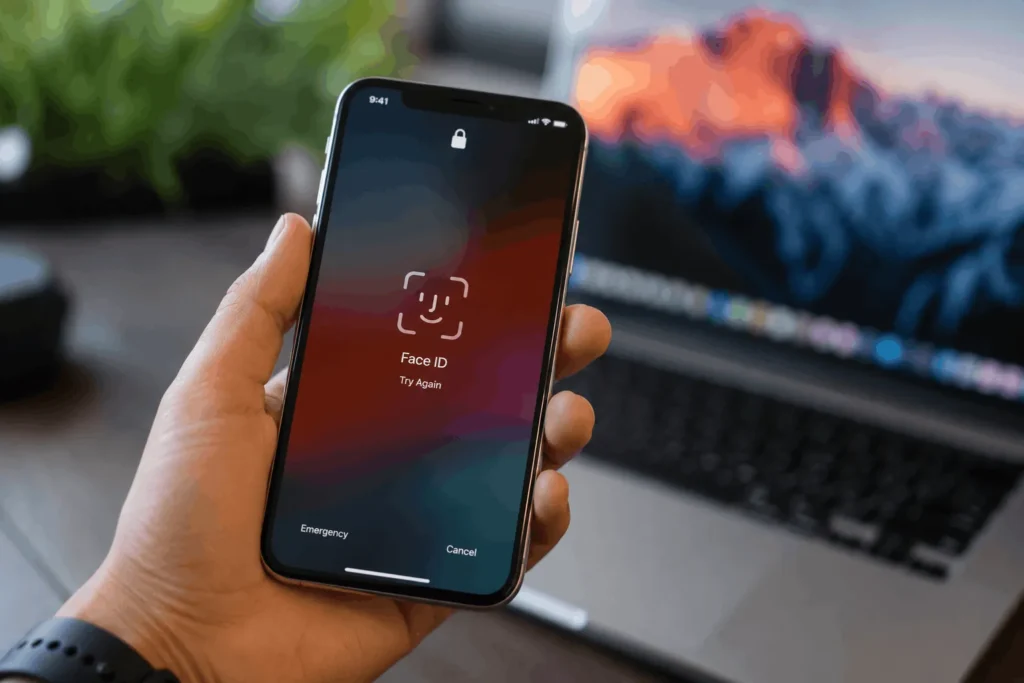
Organizations on Team and Enterprise plans can turn on Trusted Devices, currently in beta, which adds a second layer: a device has to be enrolled and the member’s sign-in has to be less than 18 hours old before they can view or steer a session from a phone or browser. After that window closes, the next attempt just asks for Face ID, Touch ID, Windows Hello, or a passkey; it does not ask for a full sign-in again. Anthropic’s documentation is specific that the biometric check happens on the device itself, and that Anthropic never receives the actual fingerprint or face data, only a public key and basic device metadata.
Remote Control vs Claude Code on the Web
Both features use the same claude.ai/code interface, so it is easy to mix them up. The difference is where the work actually happens.
| Feature | Where Claude Runs | Best For |
| Remote Control | Your own machine | Picking up local work you already started |
| Claude Code on the web | Anthropic’s cloud infrastructure | Starting a task with no local setup, or running several tasks at once |
Pick Remote Control when you are mid-task and want to keep your exact local tools and MCP servers. Pick Claude Code on the web when you would rather not leave your laptop on, or you are working on a repository you have not cloned yet.
Limitations Worth Knowing
A few constraints are worth planning around before you rely on this for daily work.
Outside of server mode, each running Claude Code process supports one connected remote session at a time. The local process has to stay alive: closing the terminal or quitting VS Code ends the session. If your machine loses network access for more than about ten minutes while it is still awake, the session times out and needs to be restarted. Starting an ultraplan session disconnects any active Remote Control session, since both share the same claude.ai/code interface. A handful of commands that open an interactive picker, like /plugin or /resume, only work from the local terminal.