
An AI file is the native document format created by Adobe Illustrator, the design software most professionals use to build vector graphics. When you see a file ending in .ai, it almost always contains a logo, icon, illustration, or piece of print artwork built from scalable paths rather than pixels.
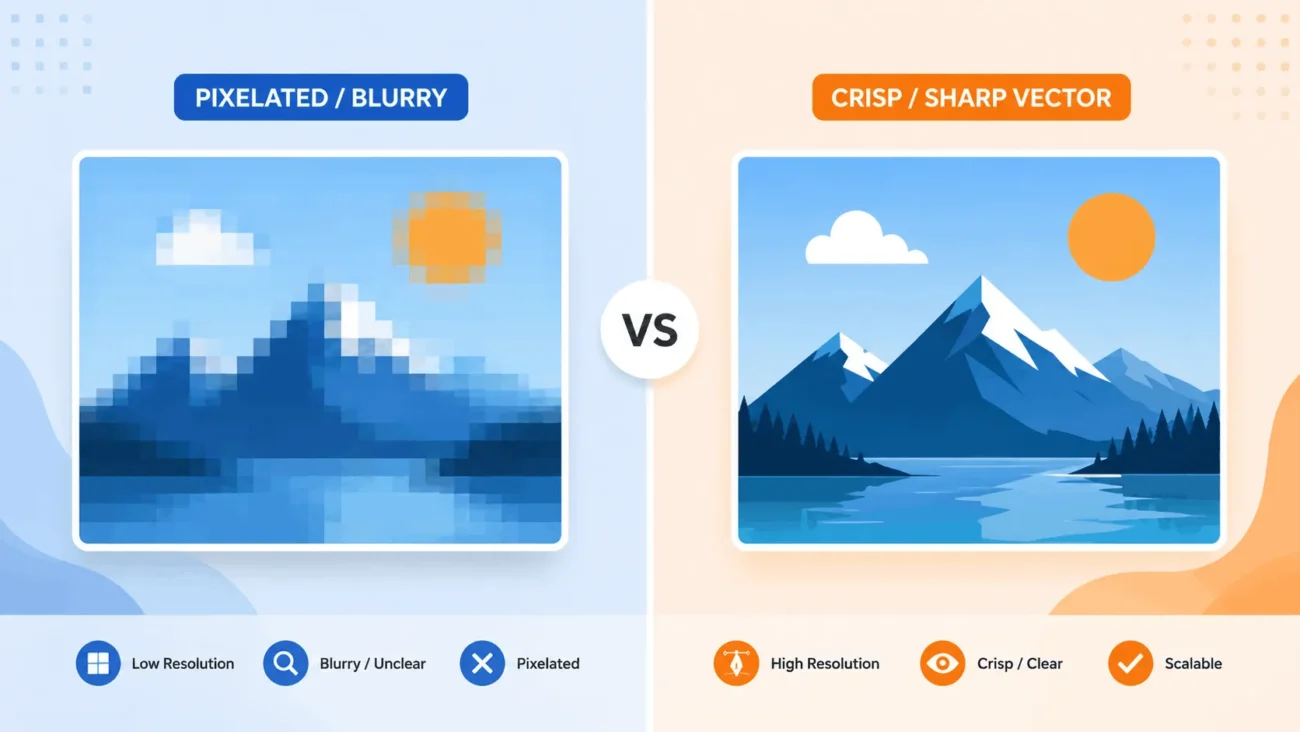
That distinction matters more than it sounds. A photo or screenshot is made of a fixed grid of colored dots called pixels. Stretch that image past its original size and the dots spread apart, so the picture turns blurry or blocky. An AI file works differently. It stores shapes as mathematical instructions, points connected by lines and curves, along with color and style data. Because the computer redraws those instructions at any size, the artwork stays sharp whether it prints on a business card or a highway billboard.
What Is Inside an AI File
An AI file is not one simple thing. It is a container that can hold several kinds of information at once, which is part of why designers rely on it so heavily.
At its core, the file stores vector paths, which are the anchor points and curves that define every shape on the artboard. Each path carries its own properties, including stroke width, fill color, gradients, and transparency settings. On top of that, AI files preserve layers, so a designer working on a logo can keep the wordmark, icon, and background on separate levels and turn any of them on or off without disturbing the rest.
Modern AI files also hold live text, meaning any words on the artboard remain fully editable rather than being flattened into shapes. Fonts, brush styles, effects like drop shadows, and even embedded raster images such as a scanned texture can all live inside the same file. This is why a single AI file often replaces what would otherwise take several separate assets to manage.
Under the hood, the format is closely related to PDF and EPS. When Illustrator saves a file with the PDF compatibility option turned on, it embeds a full PDF version of the artwork alongside the native Illustrator data. That is the reason many programs that were never built for Illustrator can still open an AI file and show you something usable, even if they cannot edit every feature.
What AI Files Are Used For
Graphic designers reach for the AI format any time artwork needs to survive being resized without losing quality. A few common uses show why that flexibility matters.
Logo design is the clearest example. A logo might appear as a small favicon on a website and as a ten-foot sign on a storefront within the same brand guide. Only a vector format can serve both without a redesign. Packaging and print work rely on the format for similar reasons, since a label or box design often gets scaled and rotated many times before it reaches a printer.
Icon sets, infographics, and technical illustrations also favor AI files because individual elements need to be moved, recolored, or swapped out later. A web or product designer might build a full icon library in one AI file, then export each icon separately as needed. User interface designers use the format for the same reason when building design systems that need consistent, editable shapes.
How to Open an AI File
Adobe Illustrator is the only application built specifically to read and edit every feature an AI file can contain, so it remains the safest choice when you need full editing access. A paid Creative Cloud subscription is required for the desktop app, though Adobe also offers limited AI file viewing through its free Acrobat Reader when the file was saved with PDF compatibility enabled.
If you do not have Illustrator, several other routes work depending on what you need to do:
Viewing an AI File Without Illustrator
Because most AI files include an embedded PDF layer, any standard PDF viewer can often open one well enough to see the artwork, even though editing tools will not appear. Free image viewers and web browsers can sometimes preview a flattened version the same way. This works for a quick look but will not show layers, live text, or Illustrator-specific effects correctly.
Editing an AI File Without Illustrator
A handful of alternative design tools can open and edit AI files with varying levels of accuracy. Affinity Designer, CorelDRAW, and Inkscape, a free open-source vector editor, all support opening AI files directly. Results vary by how the original file was saved and which Illustrator features it uses, since some proprietary effects and brush types do not translate cleanly outside Adobe’s own software. Complex files with many effects, custom brushes, or newer Illustrator features tend to convert less reliably than simple logo files.
Converting an AI File to Other Formats
Because the AI format is proprietary and Illustrator-specific, designers frequently convert files into more universal formats depending on where the artwork is headed next.
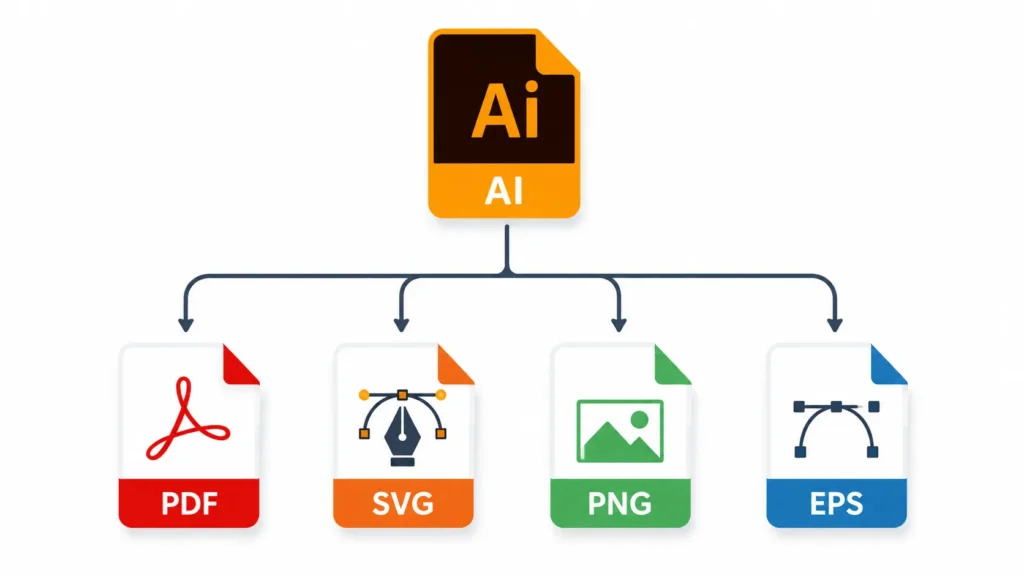
1: AI to PDF
PDF is the safest format for sharing artwork with clients or printers who do not own Illustrator. It preserves the visual layout accurately and opens on virtually any device, though it strips out Illustrator’s editable path and layer data unless the recipient also has Illustrator to unpack the embedded version.
2: AI to SVG
SVG is the open vector standard built for the web. Browsers render SVG files natively without any plugin, which makes the format ideal for website icons, logos, and illustrations that need to stay crisp on any screen size. The tradeoff is that exporting to SVG only captures the active artboard, so any artwork sitting outside that boundary gets left behind.
3: AI to PNG or JPG
When artwork needs to appear as a flat image, for instance inside a social media post or a Word document, exporting to PNG or JPG makes sense. This conversion flattens all the vector data into fixed pixels, so the file loses its infinite scalability the moment it is saved. PNG also supports transparent backgrounds, which JPG does not, so PNG is usually the better pick for logos placed over colored backgrounds.
4: HAI to EPS
EPS predates modern vector formats and still shows up in older print workflows or legacy software that has not been updated to accept native AI files. It is a reasonable fallback for compatibility with older systems, though Adobe itself now treats EPS as a legacy format and it does not support transparency the way AI and PDF do.
AI File vs Other Common Formats
Understanding how the AI format compares to its closest relatives makes it easier to choose the right file for a given task.
Against PDF, the two formats share the same underlying technology, since Illustrator can embed a full PDF layer inside an AI file. The practical difference is intent: AI keeps every editable Illustrator feature intact and is meant to stay a working file, while PDF is built for universal viewing and printing rather than ongoing editing. A common workflow is keeping the AI file as the working master and sending clients a PDF export instead.
Against SVG, the AI format holds more design information, including proprietary brushes, effects, and multiple artboards, while SVG is a leaner, code-based format built specifically for web rendering. A typical pattern is designing the full artwork in an AI file, then exporting individual icons or graphics as SVG for the website.
Against raster formats like PNG and JPG, the difference comes down to scalability rather than feature depth. An AI file can be resized endlessly without quality loss, while a raster export is locked to the pixel dimensions it was saved at. Anyone planning to resize artwork later should keep the original AI file rather than relying on a flattened export.
Is an AI File Safe to Open
AI files themselves are not inherently dangerous, since they are design documents rather than executable programs. As with any file received from an unfamiliar source, it is still worth confirming the sender is legitimate before opening it, and scanning attachments with updated antivirus software is a reasonable precaution. The bigger practical risk with AI files is compatibility rather than security: opening one in software that cannot fully interpret Illustrator’s proprietary features can distort layers, fonts, or effects, which is why keeping a PDF or flattened backup alongside the original AI file is good practice for anything used across multiple programs.