

A no-code form builder lets you create a working form without writing HTML, CSS, or JavaScript. That covers everything from a simple contact box to a branching multi-page application. You drag fields onto a canvas, set a few rules, and publish. The category is crowded enough now that picking the wrong tool is easy. You sign up for something that looks polished in the demo. Then you hit a submission cap or a missing integration three weeks later. This guide skips the marketing language. It walks through what actually separates a good no-code form builder from one that frustrates you by month two. That includes a few things most comparison pages leave out.
What a No-Code Form Builder Actually Does
A no-code form builder is a visual editor that turns form fields, layout choices, and simple rules into a working web form. You place a text field, a dropdown, or a file upload where you want it. Then you publish a link or embed the form on a page. People use these tools for contact forms, event registration, job applications, quote requests, feedback surveys, and order forms. Under the hood, the platform still writes the code. It just does that work for you the moment you drag a field into place.
No-code does not mean no logic. Nearly every builder worth using lets you set conditional rules. You might show a shipping address field only when someone selects home delivery. You build that rule by clicking a menu, not by writing an if-statement. The same applies to calculations, multi-step flows, and redirects after submission. The logic still exists. You just never touch the syntax that runs it.
The Two Types of No-Code Form Builders
Most comparisons lump every tool into one bucket, but there are really two distinct categories. The first is the visual builder, where the platform hosts your entire form, including its design, fields, and submission handling. Google Forms, Typeform, Jotform, Tally, and Zoho Forms fall into this group. You never touch your own website’s code at all.
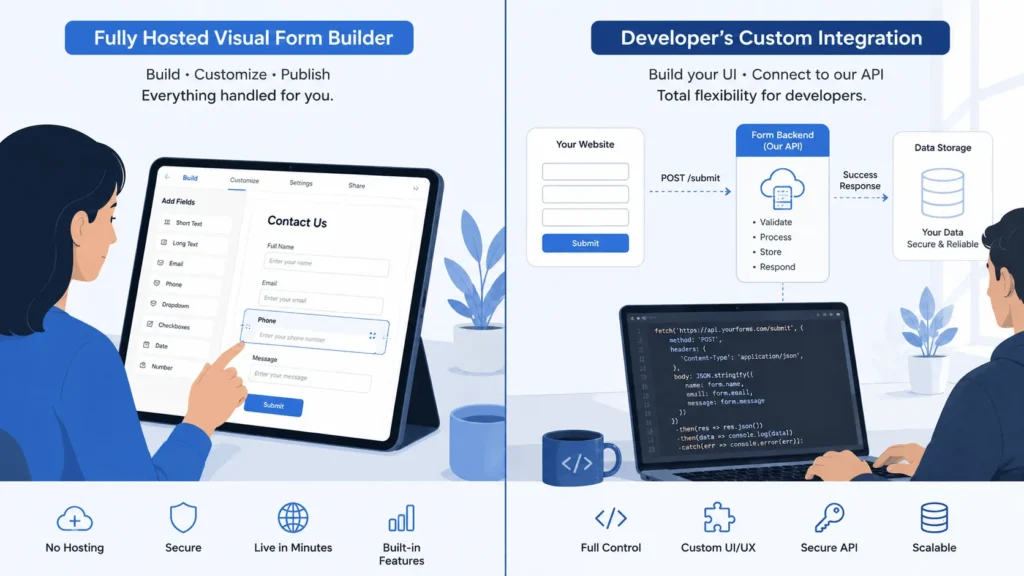
The second category is the form backend. You keep full control of your form’s HTML and design, often built by a developer or a page builder. You point that form’s action attribute at the backend’s endpoint, and the service handles storage, spam filtering, and notifications behind the scenes. This route suits anyone who already has a custom site and wants to keep design control while skipping server-side coding. If you are starting from nothing, a visual builder usually gets you to a published form faster.
Key Features Worth Comparing Before You Commit
1: Field Types and Layout Control
Field types and layout control matter more than they look on a features page. Some builders limit you to a single column of stacked questions. Others let you place fields side by side or group them into sections. Some support a card-style layout that shows one question at a time. If your form is long, that one-question-at-a-time layout tends to raise completion rates because it feels shorter.
2: Conditional Logic and Multi-Step Flows
Conditional logic separates a basic tool from a genuinely useful one. Look for the ability to show or hide fields based on an earlier answer. A good builder also lets you skip entire pages and route a submitter to a different confirmation screen. A quote request form that only asks about permits when someone selects new construction feels far more relevant. Asking everyone the same twenty questions does not.
3: Integrations and Where Your Data Goes
Integrations decide whether your form data becomes useful or just sits in an inbox. Check whether the builder connects directly to the spreadsheet, CRM, or email tool you already use. Also confirm it supports Zapier or a similar automation platform for anything it does not connect to natively. A webhook option matters if you plan to send data somewhere custom later. It lets you build your own connection without waiting for the provider to add one.
4: Spam Filtering and Submission Security
Spam filtering protects both your inbox and your data quality. Reasonable builders combine reCAPTCHA, honeypot fields, and some form of AI-based filtering. Together these catch obvious bot submissions before they ever reach you. Without this layer, a public form can fill up with junk entries within days of going live.
5: Branding and Customization
Branding and customization control how much a form looks like your business rather than the tool that built it. Free plans commonly leave the provider’s logo on your form. They also limit you to a handful of preset themes. Paid tiers usually let you apply your own colors, fonts, and a custom domain. That makes the form feel like a natural part of your site instead of a third-party widget.
Free Plans vs Paid Plans: What Actually Changes
Free plans are genuinely usable for testing an idea or running a low-volume form, but they come with real limits. Expect a cap on monthly submissions, often somewhere in the low hundreds. Data retention windows also tend to be shorter, and branding removal is rarely included. Paid plans raise those caps, add file storage, and unlock deeper integrations. They often add team seats too, so more than one person can manage submissions.
Before you commit to a free plan long term, check what happens once you cross the submission limit. Some tools simply stop accepting new entries until the next billing cycle. That can cost you real leads if a form goes viral or a campaign spikes traffic unexpectedly.
How AI Has Changed No-Code Form Building
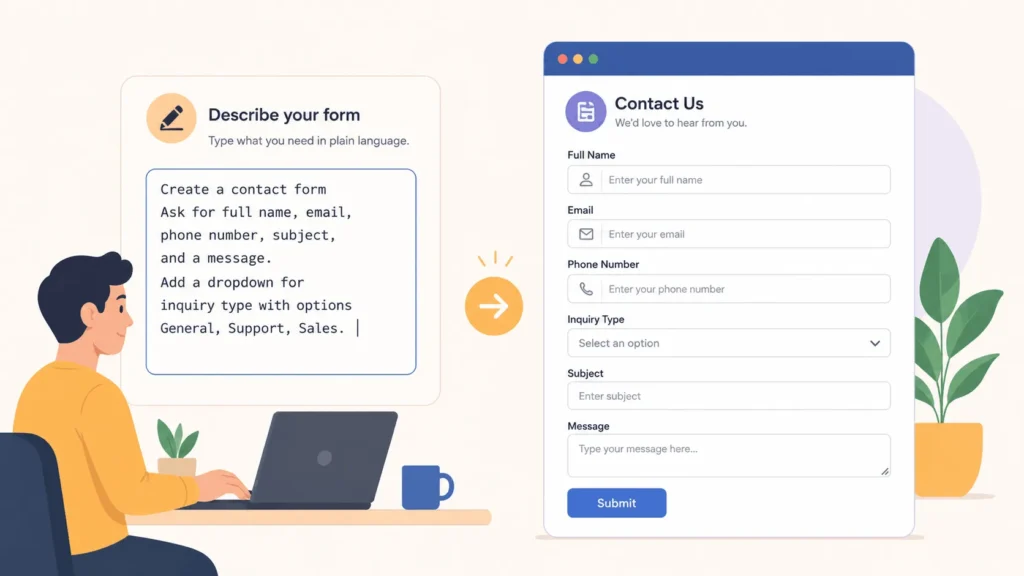
AI has changed this category faster than any update in the past several years. The clearest shift is generation. You describe a form in plain language, such as a workshop registration form with a payment field and a dietary restrictions question. The builder then drafts the structure for you to edit instead of starting from a blank canvas.
A second shift is on the response side. AI can summarize long open-text answers so nobody has to read every submission line by line. It can also score and route leads based on what someone actually wrote. That beats a fixed point system built on checkbox answers alone. These features genuinely save time on complex intake forms and sales-qualification forms. A simple two-field contact form does not need any of this. Do not let an AI feature list push you toward a more expensive plan than your form actually requires.
Common Mistakes People Make Choosing a Form Builder
People choosing a no-code form builder tend to make the same handful of mistakes. Picking a tool based purely on how the demo looks, without checking submission limits, is the most common one. Skipping the mobile preview is another mistake worth avoiding. A form that looks great on a laptop can crowd fields together on a phone screen. Many people also never check the export options until the day they want to leave. That matters if you need every past response saved in a portable format later. Finally, some builders are unclear about data ownership or retention. It is worth reading that policy before you collect anything sensitive from a visitor.
Matching the Builder to Your Use Case
1: Simple Contact and Lead Capture Forms
A simple contact or lead capture form rarely needs more than five or six fields and basic spam filtering. Almost any visual builder handles this well. Pick based on design and pricing rather than advanced features you will never use.
2: Multi-Step Surveys, Quizzes, and Applications
Multi-step surveys, quizzes, and applications benefit from a builder with strong branching logic and progress indicators. These keep long forms from feeling abandoned halfway through. Look specifically for answer piping, which lets a later question reference something the person already typed earlier in the same form.
3: Forms Embedded Into an Existing Website
If you already have a custom-built website and just need to process submissions, a form backend service is usually the better fit. You keep your existing design. You only add a small amount of code to connect the form to the endpoint, and the backend handles everything after that.
4: Order Forms and Payment Collection
Order forms and anything collecting payment need native gateway support, not a workaround. Confirm the builder connects directly to Stripe, PayPal, or Square rather than requiring a separate checkout redirect. Also check whether tax and quantity calculations are built into the form itself.
Data Privacy and Security Basics to Check
Security and privacy deserve real attention any time a form collects personal or financial information. Confirm that submissions are encrypted both in transit and at rest. Read the privacy policy rather than assuming the platform handles this the way you expect. Some providers advertise infrastructure that is technically compliant with a standard like HIPAA without holding an actual HIPAA certification themselves. That distinction matters if you plan to collect health information through a form. When in doubt on a sensitive use case, contact the provider directly. Ask for their compliance documentation before you launch the form to the public.